Selasa, 13 Agustus 2013

Ask your iphone contacts question

Got a question about how to transfer iPhone contacts? Would like to know the ways in which can back up iPhone messages or notes? Need to transfer your old Android or BB phone data from to your new iPhone?

Post your question at my Facebook page and you are going to receive the answer the same day:

Or scan the QR code below to create your Facebook question directly:

Post your question directly on the Wall and receive a detailed answer with steps and screenshots the same day!

Selasa, 30 Juli 2013

What to do if iPhone WiFi is greyed out?

If you are using iPhone 4S or iPhone 5 and have recently upgraded iOS, you might have ended up with your iPhone WiFi switch being greyed out. Read the article below to find out what causes this problem and ways it can be resolved.

The Apple Support Communities have seen a surge in problems related to iPhone users� WiFi being defunct. In many cases, the issue is related to iPhone 4S recently updted from iOS 5 to iOS 6 but also occurs in iPhone 5.

UPDATE: I found a useful post which summarizes iPhone WiFi connectivity issues in general. It might be useful for you.

Check out this tumblr post for an exotic way to fix iPhone WiFi:


What causes iPhone WiFi greyed out?

iPhone Wifi being greyed out means that there is a hardware-related issue � i.e. the iPhone WiFi chip does not function.

With the release of iOS 6 back in September last year, Apple improved power management for better iPhone performance over iOS 5. As a result of inadequate testing, however, it happens that some WiFi chips in both iPhone 4S and iPhone 5 overheat under iOS 6.

Fortunately, the iPhone is a piece of advanced technology which automatically prevents damage when the WiFi chip becomes too hot by powering the chip off. This causes your iPhone WiFi to be greyed out and ultimately, you cannot connect iPhone to the Internet via WiFi.

How to solve issue with iPhone WiFi not functioning?

You can verify whether your iPhone WiFi setting is greyed out or dimmed by navigating to Settings > WiFi.

Also, go to Settings > General > About and you will see your Wi-Fi Address empty.

Since WiFi and Bluetooth use the same radio chip, it is very probable the iPhone Bluetooth feature under Settings > Bluetooth is disabled, disconnected, or inaccessible.

To resolve the issue:

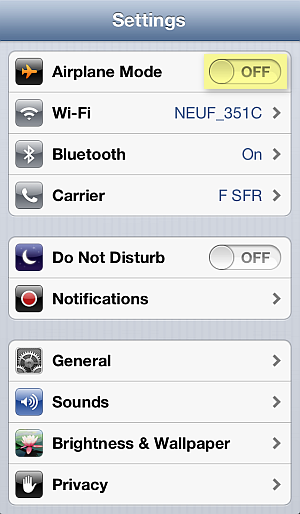
1. Navigate to Settings and make sure that Airplane Mode is switched off

2. In the iPhone Settings, go to General > Reset > Rest Network Settings

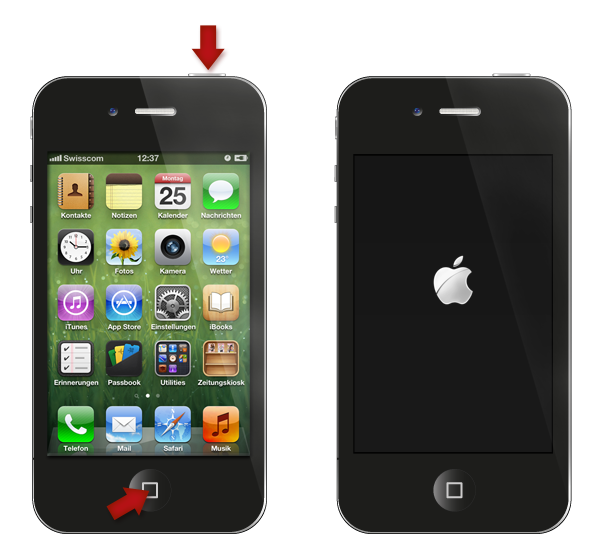
3. Cold-restart the iPhone by pressing and holding the Sleep/Wake and Home buttons simultaneously for 10 seconds until you see the iPhone screen go blank

4. If this does not sort out the issue, update the iPhone�s iOS to the latest version by connecting the device to iTunes on your PC


Alternative method known to have worked in case of iPhone WiFi setting dimmed using freezer

1. Tap Settings >General> Cellular > Cellular Data > OFF

2. Place the iPhone in a ziplock bag and make sure to squeeze the air out of the bag

3. Put the bag in a freezer for 15 minutes

Why place the iPhone in a freezer? As the iPhone would automatically turn off the WiFi chip due to overheating, when you cool down the chip sufficiently, the iPhone automatic protection is disabled. However, this is a temporary fix, until the next time the iPhone WiFi chip overheats and greys out.

If all fails or you wish to have a permanent solution for your iPhone WiFi greyed out, you must contact Apple directly. If your iPhone is in warranty, you are eligible for free-of-charge iPhone replacement by sending the device to the nearest Apple Store.

Still need help?

Post your question directly on my Facebook wall, I'll answer the same day with as many detailed instructions as possible.

To visit my helpful Facebook page click on the link below or scan the QR code to create your ticket:

Jumat, 05 Juli 2013

How to transfer Outlook contacts to iPhone without iTunes

There has never been a truly automatic way to transfer one's Outlook contacts to iPhone without having to sync with iTunes � until now. I found an easy enough way to get those Outlook contacts on my computer transferred directly to my iPhone without even having to open Outlook or iTunes on my PC. The trick works with any iOS device like iPhone, iPad, or iPod.

Here is how to transfer Outlook contacts to iPhone directly

1. Download the following Windows tool to your computer:

2. Start the tool and connect the iPhone, iPad, or iPod Touch to your computer

3. Click on the �Import contacts� button

4. Now select �Outlook (direct import from Outlook)�

5. CopyTrans Contacts will now access the Outlook contacts on your computer. From the newly-appeared window, select the Outlook contacts you wish to transfer to the iPhone and click �Import selected contacts from Outlook�

6. The Outlook contacts are now transferred to iPhone along with all contact details including contact photos.

I found this method of transferring Outlook contacts to iPhone easy and most of all efficient as it took less than 2 minutes from start to finish.

Transfer Outlook contacts to iPhone - YouTube video

This blog post was inspired by the following forum thread: How to transfer iPhone contacts to PC without iTunes.

Selasa, 11 Juni 2013

Apple unveils newest iOS 7 for iPhone, iPad, iPod Touch

At its WWDC (Apple Worldwide Developers Conference) keynote yesterday, Apple unveiled the long-rumored latest generation iOS 7. Apple made iOS 7 Beta available for developers from now on while the official release date is scheduled for this fall.

Apple CEO Tim Cook referred to iOS 7 as, "the biggest change to iOS since the introduction of the iPhone." iPhone devices to support iOS 7 are the iPhone 4, iPhone 4S, and iPhone 5.

What does iOS 7 feature?

Design. Apple has completely overturned its OS design. Jonathan Ive, Apple�s long-celebrated designer, took over software design at Apple overseeing the new radically changed iOS 7 design.

Apple�s previous versions of iOS 6 and beyond are known to heavily depend on skeuomorphism, while iOS 7 takes iOS devices to a new electrically charged minimalistic direction.

Control Center. The Control Center in iOS 7 brings a set of easily accessible iPhone features and controls. Long-awaited, Wi-Fi and Bluetooth now have their own easy-access enable/disable controls.

Multitasking. There is a clear improvement of how iPhone under iOS 7 manages multitasking. The new multitasking interface is accessed again by a double-click of the Home button. However, now users can see what�s happening on each app real-time as you scroll through the currently running apps on your iPhone; much as you�d do with iTunes Slideshow.

Siri. iOS�s artificial intelligence has just become smarter and now includes an additional set of realistic male and female voices. You can now use Siri for additional commands such as change the iPhone�s brightness and access results from Bing, Wikipedia, and Twitter.

Photos and Camera. iOS 7 now automatically organizes and archives photos you take on your iPhone. Brand new interface for the camera is now available which lets you apply filters to your pictures. A new sharing feature called AirDrop will help you easily share your photos wirelessly with your friends.

Watch this quick video showing iOS 7 features at a glance.

Selasa, 28 Mei 2013

How to remove iTunes completely

This guide shows how to completely uninstall iTunes along with all related components on your computer. If you are on a Windows PC, there is an automatic way to fully remove iTunes from your computer in a single click following the instructions below.


Apple�s manual way of removing iTunes

Apple provides some clear but complex and time-consuming steps to completely remove iTunes. According to Apple you need to remove iTunes along with 5 other related programs (QuickTime, Apple Software Update, Apple Mobile Device Support, Bonjour, Apple Application Support) in a strict order of appearance.

Mix up the order of removing these components and you risk iTunes haunting down on you lurking around on your computer. In addition, a number of errors can occur during the iTunes removal procedure especially if some of the above components are missing.


Completely uninstall iTunes with one click

1. Download a tiny tool called CopyTrans Drivers Installer from CNET.com

2. Extract the above uninstaller tool from the ZIP and double-click in order to run it. This program is normally used to install the iOS drivers needed in order for your PC to correctly recognize your iPhone/iPad/iPod Touch. However, if you already have iTunes installed, the tool will also help you fully remove iTunes from your computer. To do so, simply click on the �Uninstall� button

3. The program will now automatically remove iTunes along with related iTunes components below in the correct order and completely automatically:

  • QuickTime
  • Apple Mobile Device Support
  • Apple Software Update
  • Bonjour
  • Apple Application Support

4. In less than a minute (depends on your computer speed) iTunes will be fully removed from your PC and you will see the below screen. You can now click on the �X� button on top in order to close the tool as it served its purpose.

Watch this video demonstrating how to automatically remove iTunes as per the above steps

This is how to automatically and completely remove iTunes from your computer in less than a minute.

Selasa, 14 Mei 2013

Star Trek fans enjoy CopyTrans Contacts #ctcis on Twitter

A few sites announced today that CopyTrans Contacts is organizing a Twitter adventure game for those who love Star Trek. The occasion is the upcoming release of Star Trek Into Darkness.

UPDATE: the RT adventure is now officially over. Get CopyTrans Contacts at more than 30% off now until 16th May @ 3 pm New York time.

According to Techvoize a sale for CopyTrans Contacts is scheduled for May 15th starting at 15h00 New York time. The price of the iPhone contact and notes management program will go up to 90% off (or around USD 1.30) depending on the amount of re-tweets collected during the retweet game organized prior to the sale.

The retweet adventure starts one day earlier, on May 14th at 15h00 New York time for about 24 hours during which Twitter users keen to push the final price of the program during the sale will accumulate retweets. The event will take place on the organizers� Twitter page this afternoon at 3pm:

http://twitter.com/copytrans

A total of thirty retweets of the messages posted on the organizer�s Twitter account will lead to thirty percent off in discounts while 100 retweets will double the discount rate to whooping sixty percent. The organizers do not mention the number of total retweets required to bring down the price at over ninety percent yet.

Here is a short video of the program in question showing one of its many functions � how to manage iPhone contacts from a PC:

Jumat, 03 Mei 2013

Google Now for iPhone: out now

On Monday, Google launched its artificial intelligence voice service called Google Now for the iPhone, iPad and iPod Touch. Google Now can easily be compared to Siri but there are things that Google Now can do and Siri can�t (and the other way round).

Google Now is not a separate iPhone app but comes with the latest version of Google�s Search app which is now also available for the iPhone. Siri can�t do everything Google Now does; the opposite is also true. For example, try finding out when the local Post office is open. Google Now will instantly find the nearest post branch and list its opening times. Siri, on the other hand, will provide you with standard search results for local post offices opening hours in general.

But Google Now will not be able to call your contacts, at least on your iPhone � for now. This is reserved territory for Siri. Google Now would also save the appointments you made to your Google calendar and not to your local iPhone or iCloud calendar for understandable reasons.

To find out more about what�s hot about the newly-released Google Now for iOS, have a look at the official video by Google: