Rabu, 06 Maret 2013

iPhone contacts: delete contact groups

Apple does not allow removing contact groups from the iPhone�s native Contacts app. Here is a way to go around this limitation and delete your iPhone contact groups.


What you need in order to delete contact groups from your iPhone:

1. Run the utility above from your computer and plug-in your iPhone. You can see that your iPhone contacts and contact groups will begin populating the program window

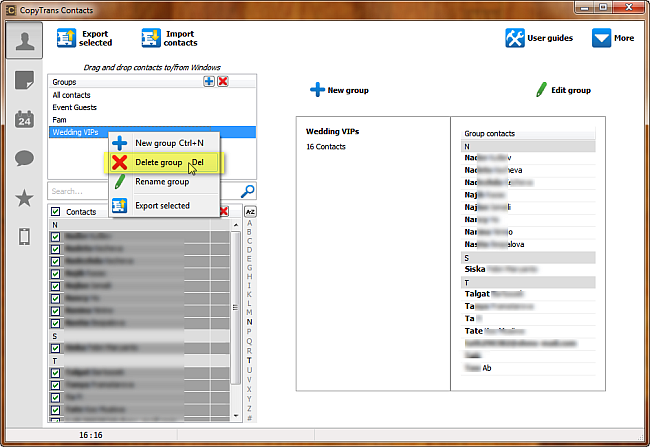
2. Select the iPhone contact group you�d like to delete and right-click on it. Choose �Delete Group�

3. Your iPhone contact group is now deleted. The contacts which populated the deleted group remain on your iPhone

Good to know a quick method to delete contact groups on iPhone.

Kamis, 28 Februari 2013

HTC Sync Manager to extract text messages from iPhone backup

The new HTC One is to be released in just about a week or two from now in mid-March and HTC tries to play a strong card especially for those iPhone users who would like to migrate to the Android-based phone.

Deemed a �game-changer� according to the Taipei-based company, HTC One keeps the buzz snow-balling due to the fact that the new HTC Sync Manager will allow ex-iPhone users to easily migrate their data to the Android-based phone.

The iPhone data such as iPhone contacts, iPhone calendars and text messages which is stored within the iOS backup files on your computer and is saved during each iTunes sync between your iPhone and your PC, will now be extracted by HTC Sync Manager and placed directly and automatically to your new Android. CNET Asia also reports that the feature will for now only be available for the HTC Sync manager designed for HTC One.

No word whether the HTC Sync Manager will support both PCs and Mac, however, this has been the case for previous versions of the software. What remains to be seen is whether other Android-phone producers such as Samsung and Google would also feature similar backup extractor tools for iPhone data backup migration.

Rabu, 30 Januari 2013

128 GB iPad announced: Apple launches February 5th

Early this week, Apple announced the arrival of a new edition to the already wide-ranged iPad family. The current 4th generation of iPad will get a storage memory boost with the 128 GB iPad version launching next Tuesday, February 5th.

The new 128 iPad will come at a price premium of USD 100 on top of the current top-notch configuration, which means you can get one for USD 799 for the non-cellular version and USD 929 for the cellular version of the new iPad 128 GB.

There are already rumors that the launch of a 128 GB iPad is a forerunner of a new 5th generation of iPad to bepossibly launched in Fall .

Question remains whether Apple would also introduce a 128 GB version of its current iPhone 5 line. There are a number of heated discussions about that already; however, chances of us seeing a 128 GB iPhone 5 at this stage remain slim.

Selasa, 15 Januari 2013

How to export iCloud contacts to your computer

This short guide shows how to export your iCloud contacts to your computer. There are a number of reasons for why you would wish to export your iCloud contacts � one of them is to keep a safe backup of your iCloud contacts on your computer.


Exporting your iCloud contacts

1. Log in to your iCloud account from a web-browser on your computer using your Apple ID and password by going to:

https://www.icloud.com/

2. Click on the Contacts icon

3. Select all of your iCloud contacts by simultaneously pressing CTRL + A on your keyboard and click on the cog-wheel button at the bottom left of the screen. Now select �Export vCard�

4. Navigate to the location on your computer where you want to export your iCloud contacts and save the resulting single vCard contact file which contains all of your iCloud contact entries. Now you have a single vCard (*.vcf) file saved on your computer which contains all iCloud contacts at once.

You can use this contact file to later import it to another iCloud account, your Outlook on your PC, your email account or another contact-manager program.

This is how to quickly export iCloud contacts to your computer.

Jumat, 04 Januari 2013

Facebook Messenger for iPhone to feature free calling

On Thursday, the Facebook Messenger app for iPhone has just received an update to version 2.1 and will start rolling out a new �push to talk� feature.

According to Facebook, the �push to talk� free calling function is currently enabled only for Facebook Messenger users in Canada.

Here is how the Facebook Messenger app update appears on my iPad Mini. Of course the app remains strictly for the iPhone for now.

Free calling in Facebook Messenger means that the app would rival apps such as Viber and even Skype. However, note that so far there is no word from Facebook headquarters for video calling in their Messenger app.

Rabu, 26 Desember 2012

Backup iPhone SMS

Many colleagues and friends of mine have been asking me a simple question: How to backup iPhone SMS messages? Rudimentary this question might be; however, there is no direct way to backup your iPhone SMS messages to your computer in a user-friendly way.

Using standalone utilities for iPhone SMS backup

I have found no single tool to be doing the job perfectly, however the below PC program closes in to what one genuinely needs on a daily basis in order to backup SMS text messages to one's computer:

http://www.copytrans.net/copytranscontacts-notes-sms.php

1. In order to export and backup your iPhone SMS, download and run the above utility; then, connect your iPhone to your computer. Your iPhone SMS messages will now be displayed after you click on the iPhone SMS icon on the far right of the program window

2. Follow the directions in this video, or continue with the steps below:


3. Now select the iPhone SMS to backup and click Export selected

4. Select the location on your computer where to backup your iPhone SMS

5. The iPhone SMS you selected is now saved to a folder on your PC into HTML files. You can see that I have exported all my iPhone SMS messages in this way

6. You can now freely access and interact with your iPhone SMS backed-up in this way on your computer

What I�d like to see this utility do is also to help me delete my text-messages from my iPhone all at once. I hope this feature will follow with a future release.

Backing up your iPhone SMS via iTunes or the iCloud

Another way to backup iPhone SMS messages is via iTunes sync. iTunes will backup your iPhone SMS, emails, and contacts along with your iPhone settings when syncing with your iPhone.

The caveat is that you can never access your iPhone SMS backup made via iTunes on your PC. In order to see your backed up iPhone SMS messages, you would need to restore your iPhone from the backup made by iTunes which will also restore your iPhone settings, contacts and other data at the time when the backup was made.

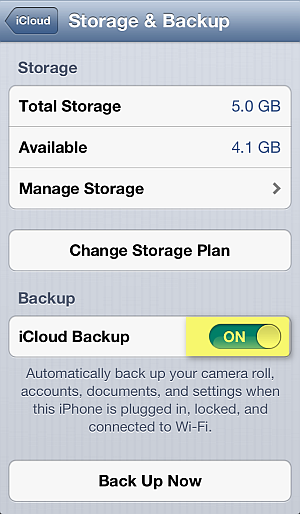
Backing-up iPhone messages with iCloud works in the same way as backing-up with iTunes. You can enable automatic iCloud backup on your iPhone by navigating to Settings > iCloud > Storage & Backup and enable iCloud Backup.

I hope I have been helpful and you will now find it easier to backup iPhone SMS to your computer in a more user-friendly way.

Kamis, 13 Desember 2012

Official Google Maps app: Out for iPhone

Apple has finally approved a Google-produced Maps app for the iPhone 5, iPhone 4S, iPhone 4 and 3GS as well as for the iPod Touch. You can already download the official Google Maps app from the iTunes store.

With iOS 6, Apple decided to reinvent their Maps app by scrapping the map services offered by Google and replacing them with their own. The revamped Apple Maps iPhone app did not cater to the expectations of many and some even found it disappointing due to numerous incorrectitudes and other issues compared with the service provided by Google Maps.

With users who updated to iOS 6 finding no way to revert back to the Google Maps service which the official Maps iPhone app offered in previous iOS versions, Google initially remained silent on any prospects of developing their own native Google Maps iOS app.

However, it was clear that Google was cooking a Maps app of their own and on September 12th it was unofficially rumored that Google submitted their Maps app to Apple for approval.

At last, Google Maps iPhone app was just officially approved by Apple for the iPhone � possibly an iPad app will also follow soon.

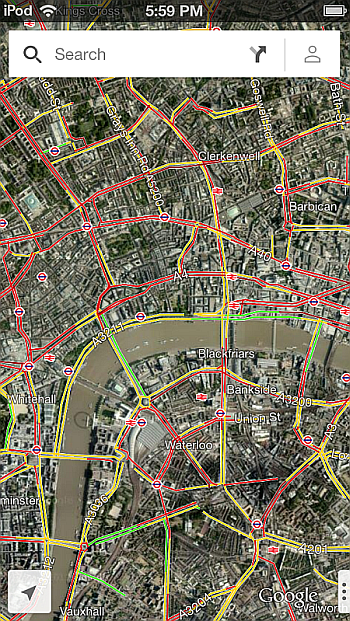
At first sight the new Google Maps app looks revamped, yet it features a simple interface. The Maps app gives you a chance to log in with your Google account but you can skip this step.

The satellite map imagery is as outstanding as Google could make it.

You also have the old Traffic and Public transit features we know from the original Maps app.

Here is how the app looks on my iPad Mini. Obviously, the Google Maps app is still available only for the iPhone, at least in the beginning.

Finally, here is a YouTube video from New York Times revuewing the newly-approved official Goolge Maps app.